
 Remote support in one click. Free.
The person you help opens one file and reads you a 9-digit number. You type it in, they click Allow, and you see their screen and use their mouse and keyboard. No account, no installation, no subscription.
FreeNo accountNo trackingEnd-to-end encrypted
The files are not yet signed with paid Microsoft and Apple certificates, so on the first start the system may warn you. Windows: click More info, then Run anyway. Mac: open System Settings → Privacy & Security and click Open Anyway. You see this once.
How it works
- 1
Open the file
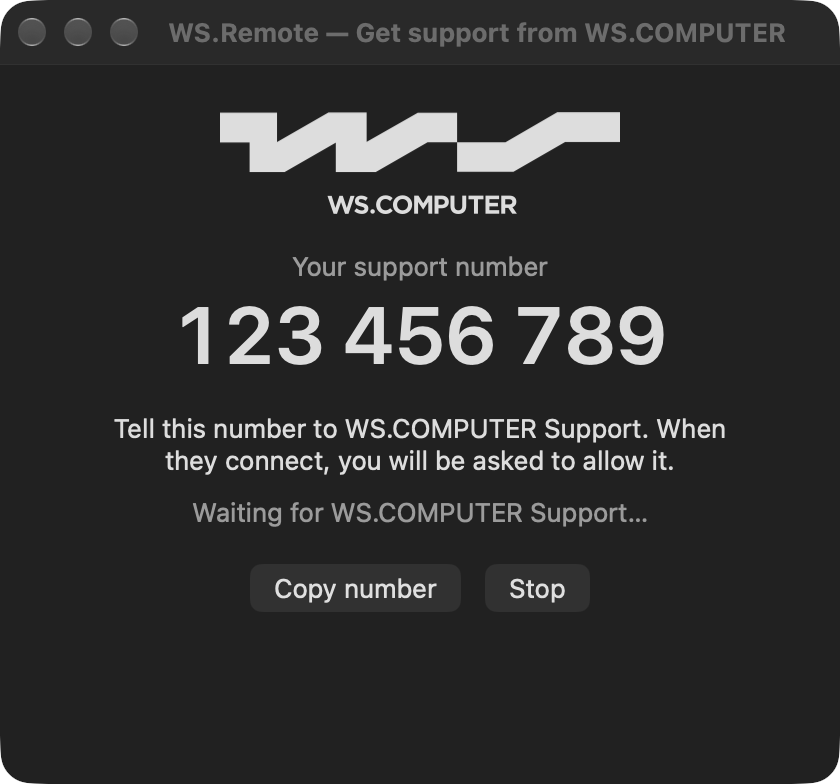
The person who needs help downloads WS.Remote and opens it. A window shows their support number.
- 2
Read the number
They tell you the 9 digits on the phone or in a chat. Nothing else to set up.
- 3
Allow
A window asks them to allow the connection. They see who is connecting and click Allow. A red bar at the top of their screen shows the session is on, with an End button.
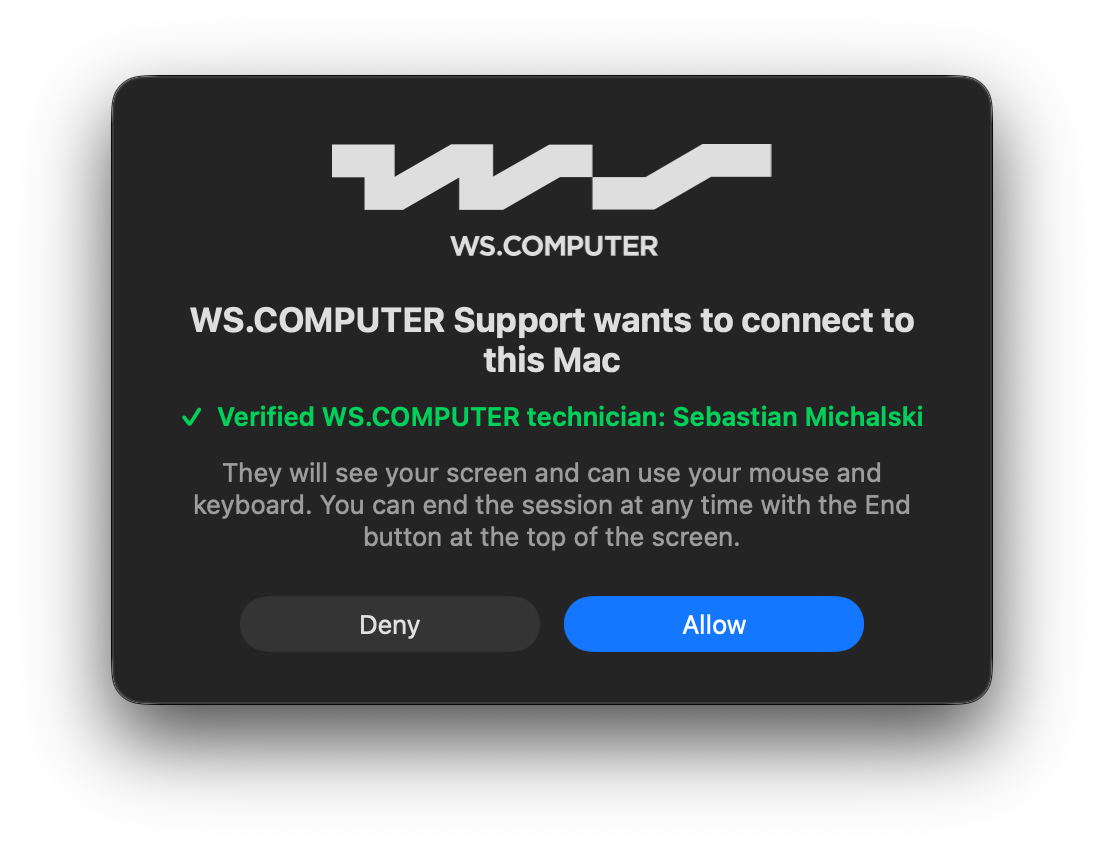


Screens from the macOS version; the Windows version shows the same windows in the Windows style.
Built for speed
What matters in remote support is that the mouse follows your hand and the picture keeps up. WS.Remote sends as little as possible and adapts to the connection every second.
Direct connection
The picture, mouse and keyboard go straight between the two computers. The server only introduces them.
The pointer on its own
The cursor position travels separately, up to 60 times a second, in a few bytes. It moves smoothly even when the picture refreshes more slowly.
Only what changed
Up to 30 frames a second, and only when something on the screen changes. Typing sends a small strip, not the whole screen.
Adapts to the connection
Every second it measures the delay and lost data, then lowers or raises the amount it sends. You always see the latest state, never a queue of old frames.
Data per frame while scrolling a full-HD screen
Light when idle
- 0.03%CPU while waiting
- 40 MBmemory
- 0network connections until someone asks for help
Private and safe
Allow, every time
Nobody can connect without the person in front of the computer clicking Allow, and the red bar shows the whole time that someone is connected.
End-to-end encrypted
Each session has its own key (ECDH P-256, AES-256-GCM). Even when the server has to pass data along, it only sees encrypted bytes.
Verified technicians
A request from WS.COMPUTER Support is digitally signed. Only then do you see the WS.COMPUTER logo and the technician's name; a forged name gets a warning instead.
Nothing in the background
No service, no autostart, no account and no tracking. Close the window and it is not connected to anything.
What the others cost
WS.Remote is free for everyone, including companies. The paid tools below do much more, but for simply helping someone they cost this much:
| Software | Plan | Price |
|---|---|---|
| WS.Remote | — | Free |
| TeamViewer | Remote Access | PLN 51.90 per month |
| TeamViewer | Business | PLN 139.00 per month |
| AnyDesk | Solo | PLN 113.90 per month |
| AnyDesk | Standard | PLN 197.90 per month |
| RustDesk | Server Pro Individual | USD 11.88 per month |
| RustDesk | Open source | Free (open source; you run your own server) |
TeamViewer and AnyDesk also have free versions, but only for personal, non-commercial use. Prices as shown on the vendors' websites on 1 October 2026 for Poland, excluding VAT, billed yearly. They differ by country and change over time; check the vendor's site.
What WS.Remote does not do (yet)
- Unattended access: someone must be at the computer to click Allow.
- File transfer, chat and session recording.
- Phones and tablets, and more than one monitor (it shows the main screen).
- Windows administrator prompts (UAC) and the sign-in screen.
- Helping others: only WS.COMPUTER Support and partners with a licence from WS.COMPUTER can connect.
For WS.COMPUTER partners
Helping others with WS.Remote is reserved for WS.COMPUTER Support and its partners: our technicians, employees and service partners. Each partner gets a free, personal, time-limited licence from WS.COMPUTER. Their clients see the WS.COMPUTER logo and the partner's verified name.
Manual
If you need help
- Open the link you were given (gruency.com/remote for Windows, gruency.com/remote-mac for Mac) and open the file. On Windows, if a blue window appears, click More info, then Run anyway. On a Mac, drag WS.Remote to Applications and allow Screen Recording and Accessibility when asked.
- A window shows “Your support number”. Read the 9 digits to the person helping you, or click Copy number and paste it into the chat.
- When they connect, check the name in the window and click Allow.
- To finish, click End in the red bar at the top of the screen. Then close the window.
If you help (WS.COMPUTER Support and partners)
Choose Connect to another computer, type the number and wait for the other person to click Allow. Your mouse and keyboard work in their window; Cmd and Ctrl are swapped between Mac and Windows, so shortcuts like copy and paste work as you are used to. The window title shows whether the connection is direct.
Questions
Is it really free?
Yes, also for companies. There is no paid version and no trial period.
Do I need to install anything?
No. On Windows it is a single file you open; nothing is installed and nothing starts with the computer.
Can someone connect without my knowledge?
No. Every connection needs your Allow, and the app connects to the server only while the number window is open.
Why does the system show a warning?
Removing it requires paid code-signing certificates from Microsoft and Apple. The files are published by WS.COMPUTER on GitHub; the warning appears only on the first start.
Which systems does it work on?
Windows 10 and 11, and every Mac with macOS 14 or later (Apple silicon M1 and newer, and Intel). A Mac can help a PC and the other way round. Linux is next.
WS.Remote · WS Apps by WS.COMPUTER · by GRUENCY · Terms of use