
 Your Mac at a glance. Very light. Free.
WS.Sensor lives in the menu bar and shows how hard your Mac is working: processor and graphics load and temperature, memory, disk and network. It barely uses the processor, needs no account and tracks nothing.
FreeVery lightNo accountNo tracking
Install on Mac
Easiest: one line, no warnings
curl -fsSL https://gruency.com/sensor.sh | sh- Click Copy.
- Open Terminal: press ⌘ Space, type Terminal, press Return.
- Paste with ⌘ V and press Return. WS.Sensor installs and opens by itself.
Or download the file
Unzip it and drag WS.Sensor to Applications. The first time, macOS may say it cannot verify the app: open System Settings → Privacy & Security and click Open Anyway. You see this once.
The Windows and Linux versions are in preparation.
What you see
Load and temperature
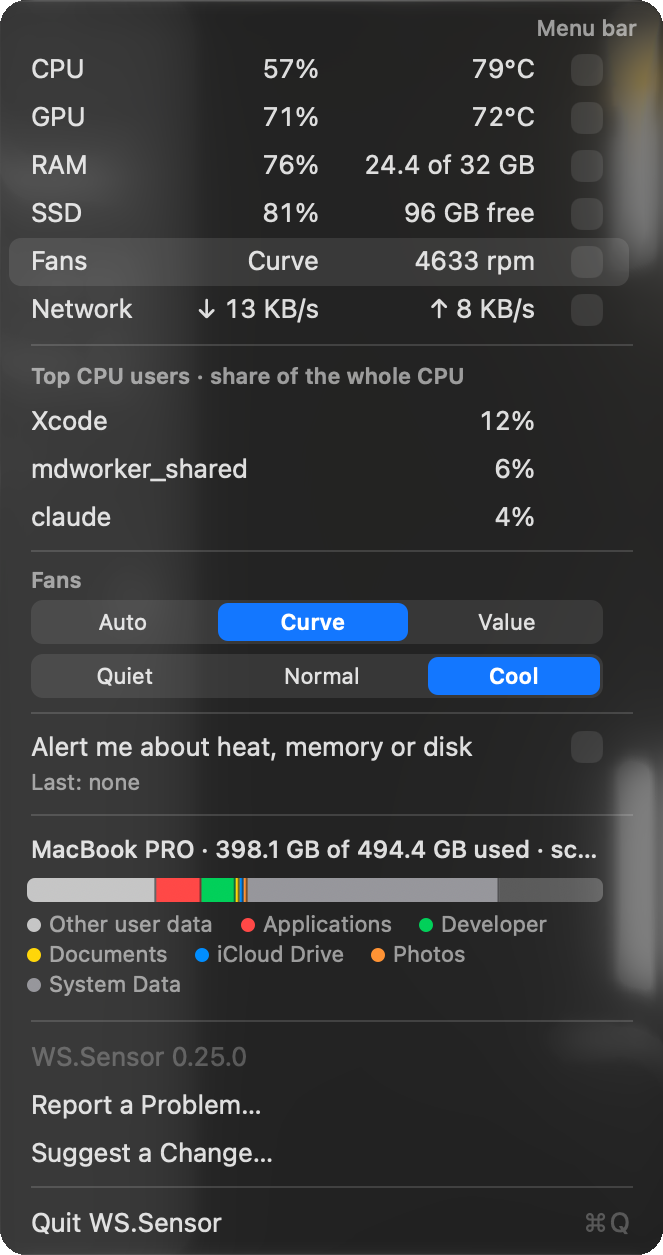
Processor and graphics use in per cent, their temperatures, free memory, disk space and download and upload speed, in the menu bar or one click away.
Fans in one row
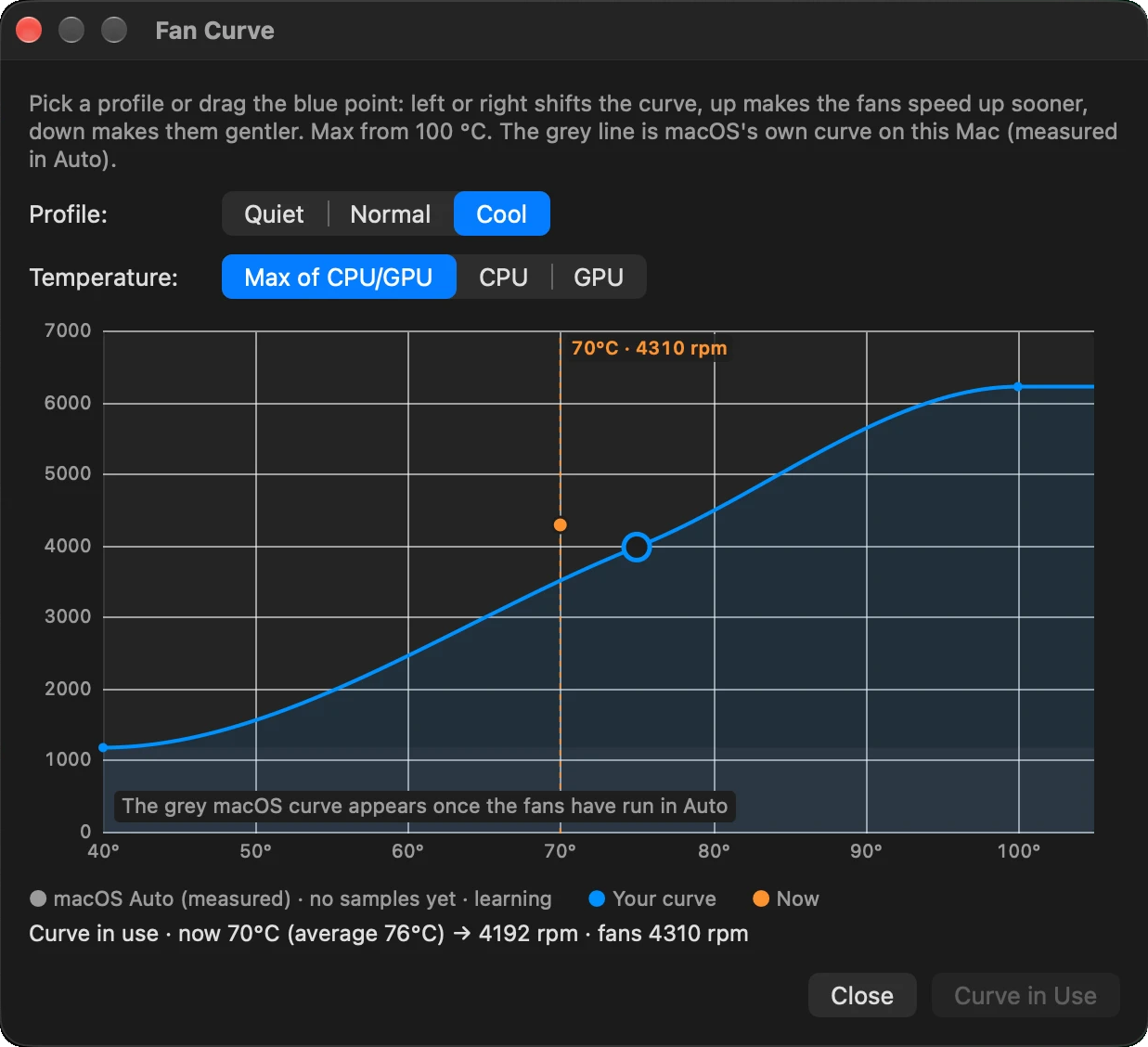
Auto (macOS), Optimized, Cool or a value of your own. The Fan Curve window lets you drag one point to make the fans speed up sooner or stay gentler.
Who is using the processor
The three busiest apps, as a share of the whole processor, right in the menu.
Disk like in System Settings
A coloured bar of Applications, Developer, Documents, iCloud Drive and more, with the biggest folders in each category.
Quiet until it matters
It turns red only at a critical level: temperature just before throttling, critical memory pressure or a disk more than 90% full. You can switch the alerts off.
Only what you choose
Two switches per sensor: Measure and In the bar. A sensor that is off is not read at all.
Light by design
A system monitor should not be the thing slowing your Mac down. WS.Sensor is built to stay out of the way.
- ≈ 1.3%of one processor core, with two displays
- 0%processor use with the display asleep
- ≈ 9×lighter than Stats, a popular free monitor
About fan control
Changing fan speed needs your one-time administrator approval. WS.Sensor shows you the command and does not run it by itself, and nothing runs in the background. Without it, everything else works and the fans stay on macOS Auto.
Questions
Is it really free?
Yes. Free to download and use, at home and at work, with no account and no payment. Copying, reselling or modifying it is not permitted.
Does it track me?
No. There is no analytics or tracking code, and GRUENCY collects nothing about you or how you use it.
Which Macs does it run on?
Macs with Apple silicon (M1 and newer) and macOS 14 or later.
And Windows and Linux?
Both are in preparation. They will be free as well.
How do I remove it?
Quit WS.Sensor from its menu and drag it from Applications to the Bin.
WS.Sensor · WS Apps by WS.COMPUTER · by GRUENCY · Free to use for any purpose; copying, redistributing, reselling or modifying it is not permitted.